The web app where you build forms, review responses, and manage your workspace, all from your browser.
Signing in
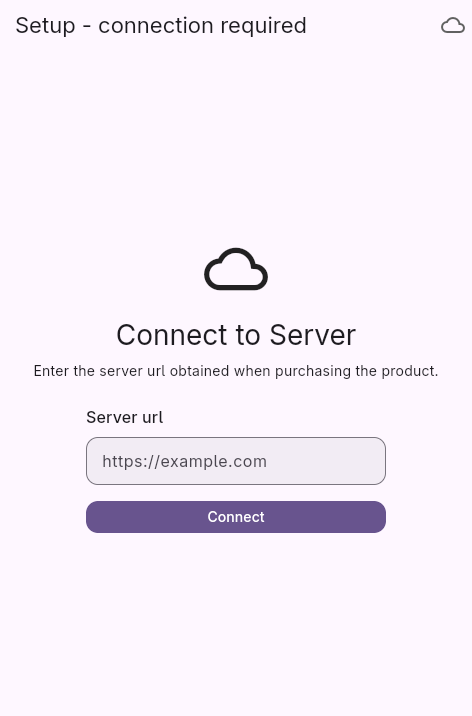
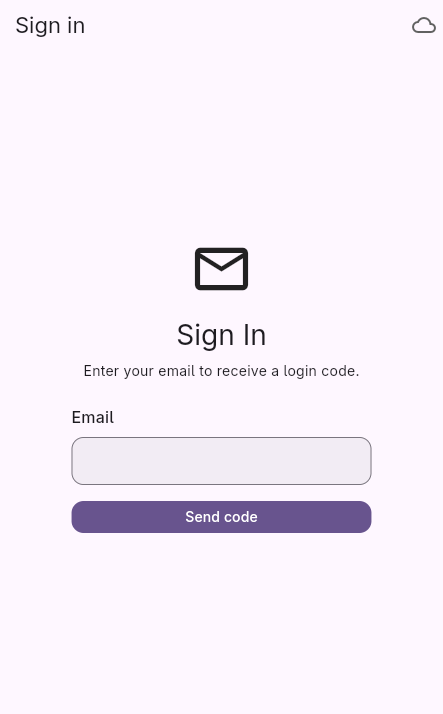
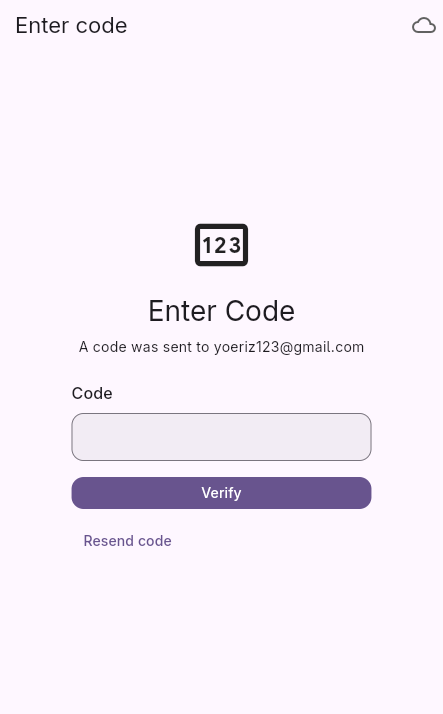
Open the Desk in your browser, enter your server address, and sign in with your email and a one-time code. The server address is the web address of your Vinkm workspace, provided by your administrator. The one-time code is sent to your email and expires quickly, so request a new one if it runs out. You'll land in your workspace, ready to go.
The workspace
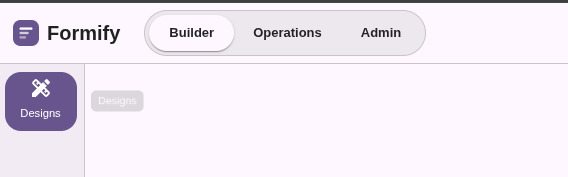
Your workspace is split into three areas: Builder for designing forms, Operations for reviewing responses, and Admin for managing accounts and branding. The areas you see depend on your role, and the menu on the left shows only the sections you have access to. If a section is missing, you may not have permission for it.
Your designs
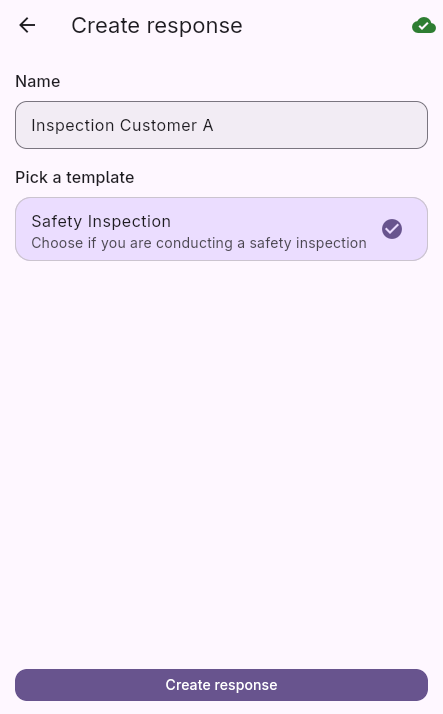
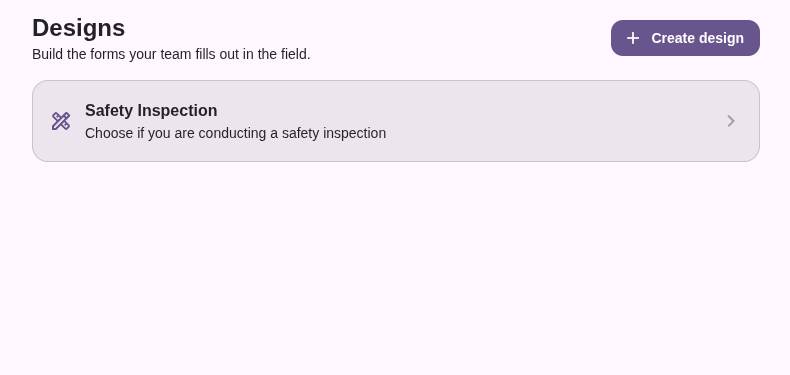
The Designs page lists every form you've built, newest first. A design is a reusable template: your field staff fills out a copy of it, called a response. Create a new design, or open an existing one to edit it. Each design can be used by everyone, so you build once and everyone collects the same way.
The form designer
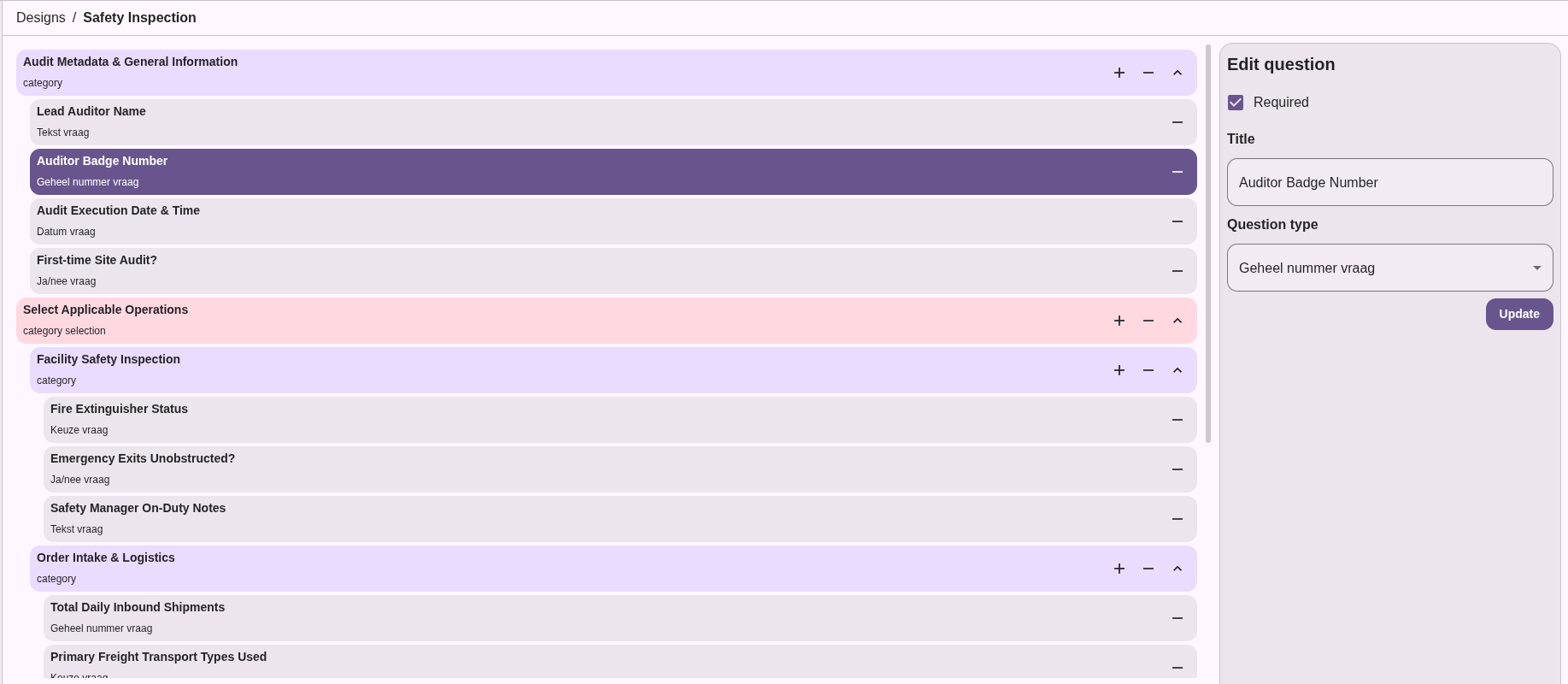
This is where you build your forms. Forms are built from categories that group related questions, so add a category first, then add questions inside it. Drag and drop to reorder, and click any question to edit it. Everything saves automatically as you work, so you don't need to press a save button.
Question types
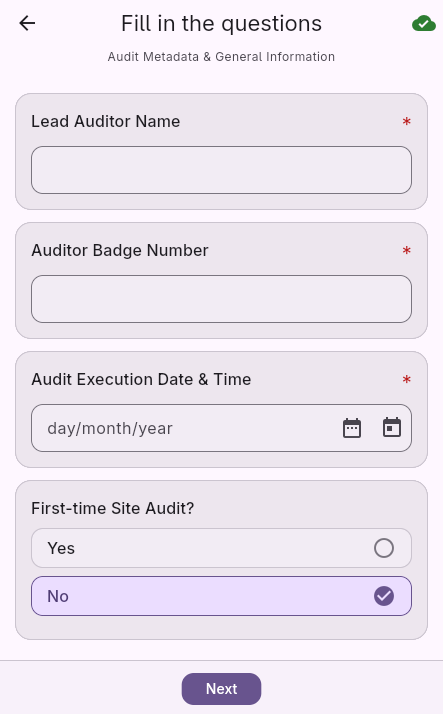
When you add a question you choose its type: yes/no, whole number, text, date, or choice. Pick the type that matches the answer you need, so you get the right control in the field. For choice questions you can allow a single answer or multiple, and add the options people should pick from.
Branching forms
Use a category selection to let the person filling out the form choose which sections apply to them. Only the sections they pick are shown, so a safety audit and a quick check can live in one form. This keeps forms short and relevant, because people only answer the questions that apply to their situation.
The response list
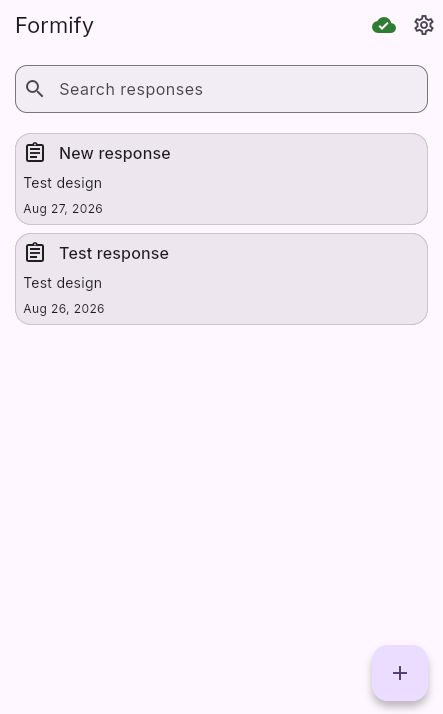
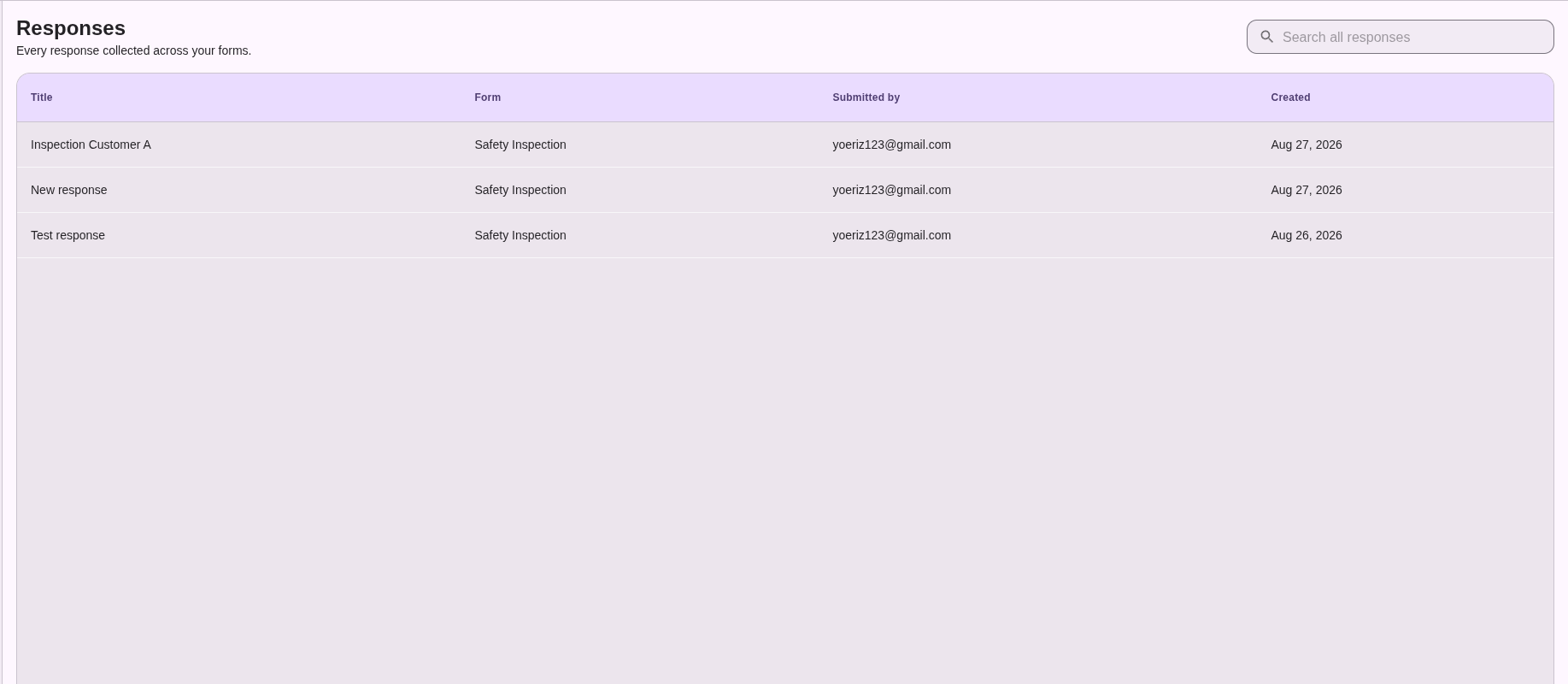
The Responses page shows everything people have submitted. Search across responses, filter by who submitted them, and click any row to open the full answer. The list is paginated, so you can page through results rather than scrolling through everything at once.
Viewing a response
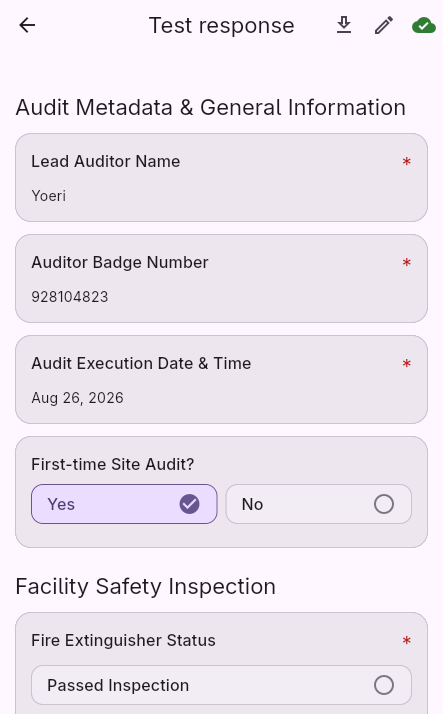
Open a response to see every answer laid out clearly, grouped by category. It's a read-only view, so you can review, verify, or share the results without accidentally changing them. Use it to check that a job was completed correctly or to pull details for a report.
Accounts
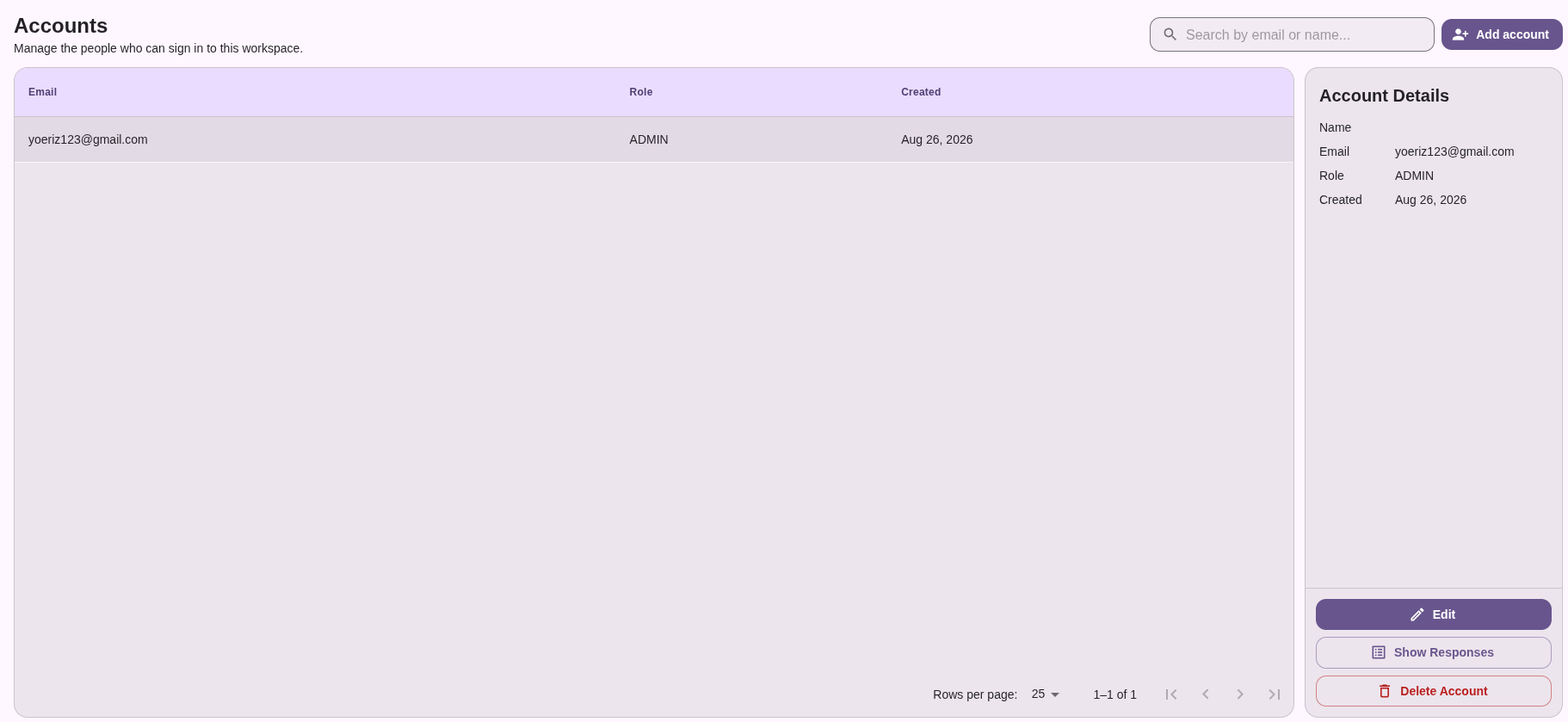
Manage who can use Vinkm. Add members with their email, set their role, and remove people who no longer need access. Roles control what someone can do: users can fill out forms, while admins can also manage accounts and branding. You can jump straight to everything a person has submitted.
Branding & theming
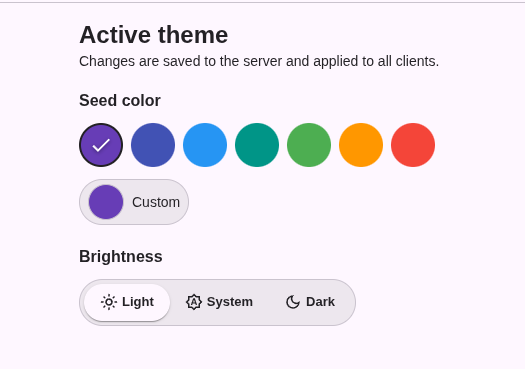
Make Vinkm feel like yours. Pick a brand color and choose light or dark mode, and the whole app updates instantly. The theme applies across your entire workspace, including all devices, so the app looks consistent everywhere. Changes are saved to your workspace and shared with everyone.
Settings
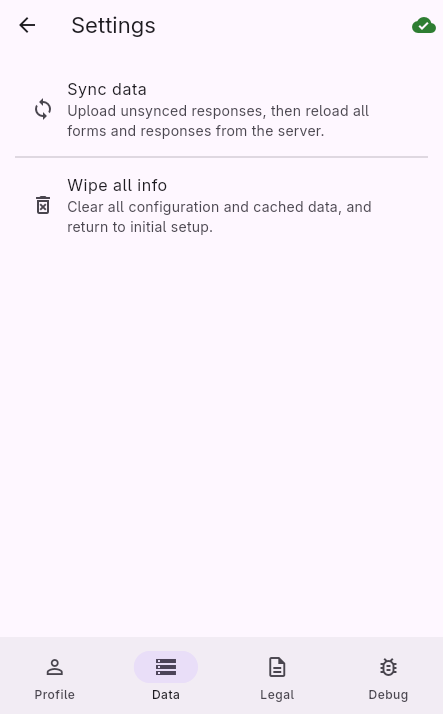
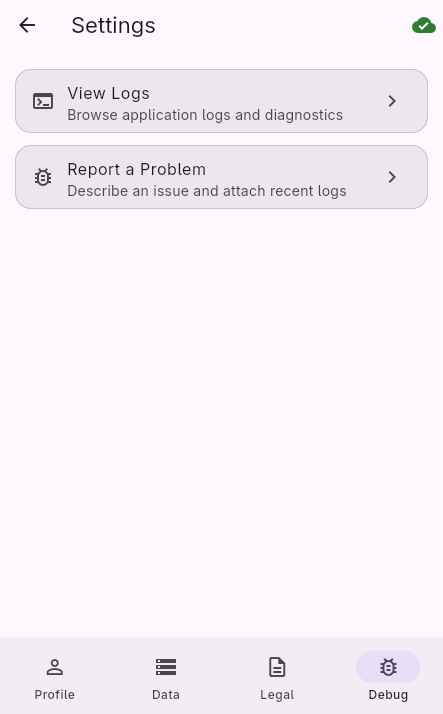
Settings holds your profile, data management, legal info, and a debug section. Data lets you wipe local information from this browser. Legal lists the open-source licenses the app uses. Debug shows logs you can share with support if something ever goes wrong, which helps them diagnose the issue faster.

 Back to the homepage